Docker Machine lets you to connect to external docker hosts and run docker commands inside any of these hosts from a single central console.
It is also used by Docker Toolbox to offer docker functions to a machine which doesn’t meet the requirenments to use docker natively:
- Docker Toolbox will install a VirtualBox virtual machine named
default - and will install and connect Docker Machine to this
defaultvirtual machine.
This way, you will be able to execute docker commands in your machine (even though these docker commands will be executed inside the default virtual machine).
The main problem with Docker Machine is that it is not easy to connect to any generic docker host unless you have the appropriate drivers for this host. I found this problem when I decided to replace the standard default virtual machine provided by Docker Toolbox because it was not good enough for my needs. So, I wonder myself:
How can I create a new virtual machine and connect and use it with Docker Machine?
To answer this question, I needed to search a lot. Because I didn’t find any good documentation. I found lots of comments and tips … which didn’t work for me most of them. But, at last, I figured out how to do it. Let me share with you.
In order to connect Docker Machine to a non standard machine you must execute a command like this:
docker-machine create --driver generic --generic-ip-address=X.X.X.X --generic-ssh-key private_key --generic-ssh-user private_user name
Where:
X.X.X.Xmust be the ip of the docker host you want to connect to.private_useris a user inside this docker host with special privileges (we will talk about it later).private_keyis a private key which can let this userprivate_userssh log into the docker host.nameis the name you want Docker Machine will use to identify this new connection.
In order Docker Machine to connect to our docker host, the provided user private_user must meet some specific requirenments:
- It must be part of the
dockergroup inside the docker host (this way, it can run docker commands). - It must have granted
sudoaccess inside the machine. - It must be able to run sudo commands without typing its password.
- It must be able to ssh-log into the machine using its private key (that is, without typing its password).
The docker host must also meet some requirenments:
- Its docker daemon must be reachable from the exterior using port
2376.
Create a Vagrant virtual machine and connect it to Docker Machine
In order to give an example, I am going to define a Vagrant virtual machine and I will connect it to Docker Machine.
Defining the Vagrant machine
The Vagrantfile will be this:
# -*- mode: ruby -*-
# vi: set ft=ruby :

# All Vagrant configuration is done below. The "2" in Vagrant.configure
# configures the configuration version (we support older styles for
# backwards compatibility). Please don't change it unless you know what
# you're doing.
Vagrant.configure("2") do |config|
  # The most common configuration options are documented and commented below.
  # For a complete reference, please see the online documentation at
  # https://docs.vagrantup.com.

  # Every Vagrant development environment requires a box. You can search for
  # boxes at https://atlas.hashicorp.com/search.
  config.vm.box = "aspyatkin/ubuntu-16.04-server-amd64"

  # Disable automatic box update checking. If you disable this, then
  # boxes will only be checked for updates when the user runs
  # `vagrant box outdated`. This is not recommended.
  # config.vm.box_check_update = false

  # Create a forwarded port mapping which allows access to a specific port
  # within the machine from a port on the host machine. In the example below,
  # accessing "localhost:8080" will access port 80 on the guest machine.
  # config.vm.network "forwarded_port", guest: 80, host: 8080
  config.vm.network "forwarded_port", guest: 22, host: 2215, id: 'ssh'

  # Create a private network, which allows host-only access to the machine
  # using a specific IP.
  config.vm.network "private_network", ip: "192.168.2.15"

  # Create a public network, which generally matched to bridged network.
  # Bridged networks make the machine appear as another physical device on
  # your network.
  # config.vm.network "public_network"

  # Share an additional folder to the guest VM. The first argument is
  # the path on the host to the actual folder. The second argument is
  # the path on the guest to mount the folder. And the optional third
  # argument is a set of non-required options.
  config.vm.synced_folder "C:\\Users", "/c/Users"

  # Provider-specific configuration so you can fine-tune various
  # backing providers for Vagrant. These expose provider-specific options.
  # Example for VirtualBox:
  #
  # config.vm.provider "virtualbox" do |vb|
  #   # Display the VirtualBox GUI when booting the machine
  #   vb.gui = true
  #
  #   # Customize the amount of memory on the VM:
  #   vb.memory = "1024"
  # end
  #
  # View the documentation for the provider you are using for more
  # information on available options.
  config.vm.provider "virtualbox" do |v|
    v.memory = 4096
    v.cpus = 2
  end

  # Define a Vagrant Push strategy for pushing to Atlas. Other push strategies
  # such as FTP and Heroku are also available. See the documentation at
  # https://docs.vagrantup.com/v2/push/atlas.html for more information.
  # config.push.define "atlas" do |push|
  #   push.app = "YOUR_ATLAS_USERNAME/YOUR_APPLICATION_NAME"
  # end

  # Enable provisioning with a shell script. Additional provisioners such as
  # Puppet, Chef, Ansible, Salt, and Docker are also available. Please see the
  # documentation for more information about their specific syntax and use.
  config.vm.provision "shell", inline: <<-SHELL
    apt-get update
    apt-get install apt-transport-https ca-certificates curl software-properties-common -y
    curl -fsSL https://download.docker.com/linux/ubuntu/gpg | sudo apt-key add -
    apt-key fingerprint 0EBFCD88
    add-apt-repository "deb [arch=amd64] https://download.docker.com/linux/ubuntu $(lsb_release -cs) stable"
    apt-get update
    apt-get install docker-ce -y
    usermod -aG docker vagrant
    cp /vagrant/provision/docker.service /etc/systemd/docker.service
    chown root:root /etc/systemd/docker.service
    chmod 644 /etc/systemd/docker.service
    systemctl daemon-reload
    service docker restart
    apt-get install -y docker-compose
  SHELL
end
Let’s review this file:
- Creates a new virtual machine based in Ubuntu 16.04.
- The forwarded port is
2215. - It has its own private ip
192.168.2.15. - I have shared my
C:\Usersfolder (it’s a Windows laptop) as/c/Users. - As the provider is Virtual Box, I have configured my virtual machine to have 4096Mb of memory and 2 cores.
The last part is the most interesting one. This is when I configure my virtual machine so it can be connected by Docker Machine:
- I install the latest version of Docker.
- As I know my virtual machine already has a sudo user
vagrant, I will use it. I only need to add this uservagrantto thedockergroup. - I need to open port
2376for docker. To do so, I copy the needed configuration file from the fileprovision/docker.service. - I also install
docker-compose(as it is the version included with Ubuntu, it will not be the latest one, but it’s enough for my needs).
You must save this Vagrantfile inside a new folder (let’s name it vmubuntu). And inside this vmubuntu folder, you must create a subfolder provision with a single file docker.service inside:
[Unit]
Description=Docker Application Container Engine
Documentation=https://docs.docker.com
After=network-online.target docker.socket firewalld.service
Wants=network-online.target
Requires=docker.socket

[Service]
Type=notify
# the default is not to use systemd for cgroups because the delegate issues still
# exists and systemd currently does not support the cgroup feature set required
# for containers run by docker
ExecStart=/usr/bin/dockerd -H fd:// -H tcp://0.0.0.0:2376 -H unix:///var/run/docker.sock
ExecReload=/bin/kill -s HUP $MAINPID
LimitNOFILE=1048576
# Having non-zero Limit*s causes performance problems due to accounting overhead
# in the kernel. We recommend using cgroups to do container-local accounting.
LimitNPROC=infinity
LimitCORE=infinity
# Uncomment TasksMax if your systemd version supports it.
# Only systemd 226 and above support this version.
TasksMax=infinity
TimeoutStartSec=0
# set delegate yes so that systemd does not reset the cgroups of docker containers
Delegate=yes
# kill only the docker process, not all processes in the cgroup
KillMode=process
# restart the docker process if it exits prematurely
Restart=on-failure
StartLimitBurst=3
StartLimitInterval=60s

[Install]
WantedBy=multi-user.target
This file is a copy of the original one but whith line 13 modified to open port 2376:
ExecStart=/usr/bin/dockerd -H fd:// -H tcp://0.0.0.0:2376 -H unix:///var/run/docker.sock
Opening port 2376
I honestly do not like the way I have used to open port 2376 by overwritting a system file (overwriting an existing system file). There are many tips to do it in a less invasive way … but none of them has worked for me.
Starting the Vagrant machine
Once you have your new vagrant virtual machine defined, you can start it:
vagrant up --provision
The first time, it will take some time because it is provisioning the machine. But if everything is ok, you will be able to access you new virtual machine:
vagrant ssh
Connecting the new Vagrant machine to Docker Machine
Once you have your new virtual machine configured and running, you must execute the docker-machine create command. To do so:
- Open a Windows console in the folder where you have you vagrant machine files.
- There should be a subfolder
.vagrant/machines/default/virtualbox. - Inside this subfolder there should be a file
private_key. This file, is the private key of thevagrantuser inside our virtual machine.
Now, we can create the connection inside the docker console:
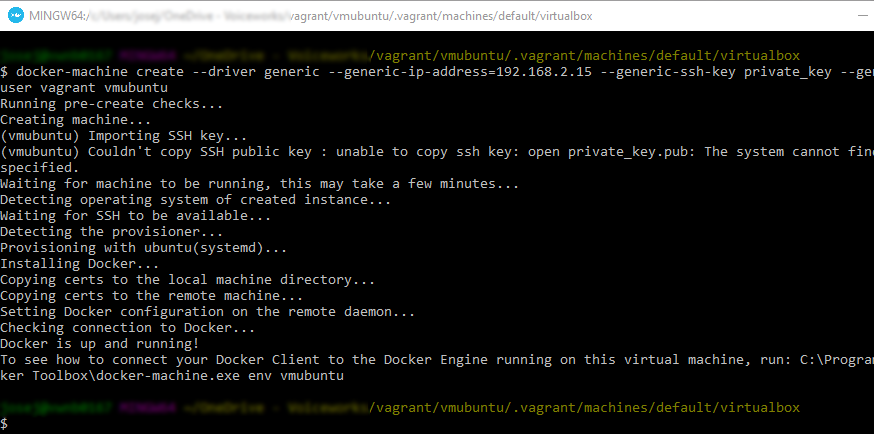
docker-machine create --driver generic --generic-ip-address=192.168.2.15 --generic-ssh-key .vagrant/machines/default/virtualbox/private_key --generic-ssh-user vagrant vmubuntu
Where
192.168.2.15is the ip we have previously assigned to our new machine in ourVagrantfilefile..vagrant/machines/default/virtualbox/private_keyis the file with the private key of uservagrant(we already checked it exists there).vagrantis the user we are going to use.vmbuntuis the name we are going to give to this connection.
The output should be something similar to:
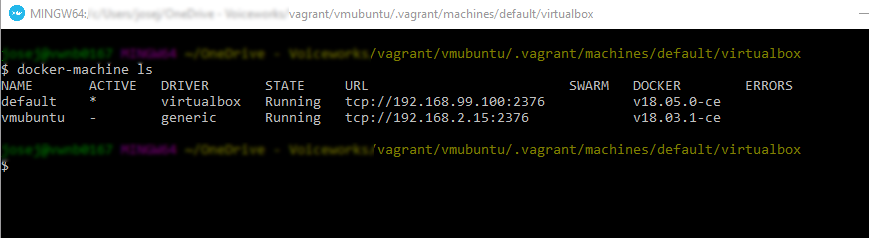
Finally, we can confirm docker-machine is connected to our new virtual machine:
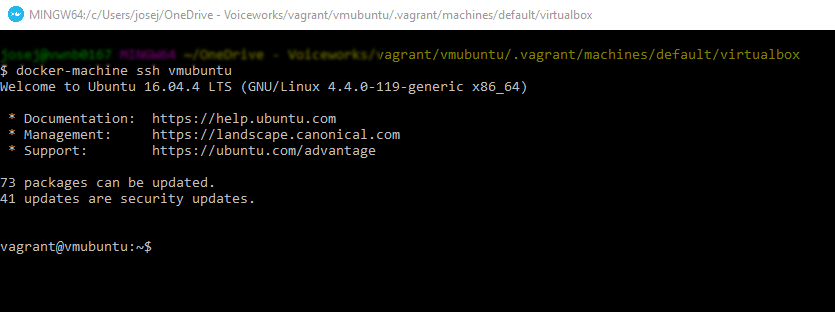
And we can log into our virtual machine via docker-machine ssh command:
We have connected our new vmubuntu docker host to docker machine. And now we can use all docker-machine commands to manage it.